
Fire TV Stick 4K Max Settings: 10 Tips for the Best Picture
The Fire TV Stick 4K Max can do more than its factory settings show. These ten settings improve picture, sound and speed – especially for IPTV.
The Fire TV Stick 4K Max is one of the most popular devices for IPTV in Germany. Unbox it, plug it in, it works. But the factory settings are a compromise for every TV out there. With a few targeted Fire TV Stick 4K Max settings you get a noticeably sharper picture, smoother motion and faster channel switching. Here are our ten tips – in the order that makes the most sense.
Picture: the most important Fire TV Stick 4K Max settings
Check the resolution
Under Settings → Display & Sounds → Display → Video Resolution, “Auto” should be selected. If the stick shows less than 4K even though your TV supports it, it is probably plugged into the wrong HDMI port.
Match the frame rate
The option “Match Original Frame Rate” makes the TV switch to the frame rate of the content. Camera pans then look calmer.
Dynamic range
Set the dynamic range to “Adaptive”. That way HDR is only used when the content actually provides it – otherwise normal pictures can look washed out.
The HDMI port on your TV
For 4K at 60 frames per second you need an HDMI input with HDMI 2.0 or newer. Often only some of the TV’s ports support it – a look at the manual is worth it.
Sound and control
Audio format
If no sound comes through the soundbar, try setting Audio → Surround Sound to “Stereo” or “PCM”.
Equipment control
Under Equipment Control you set up volume control for your TV or soundbar. Then one remote is all you need.
Speed and storage
Tidy up your apps
The stick has limited storage. Uninstall apps you never use. A full device becomes noticeably slower.
Clear the cache
Go to Applications → Manage Installed Applications → [app] → Clear Cache. With IPTV apps in particular, this helps against sluggish channel switching.
Turn off autoplay previews
The home screen likes to play video previews. You can switch this off under Settings → Preferences → Featured Content. It saves performance and bandwidth.
Network
Connect the stick to 5 GHz Wi-Fi or use the official Ethernet adapter. For IPTV, this is the single biggest lever of all. Why, is explained in IPTV internet speed.
Bonus: settings in the IPTV app
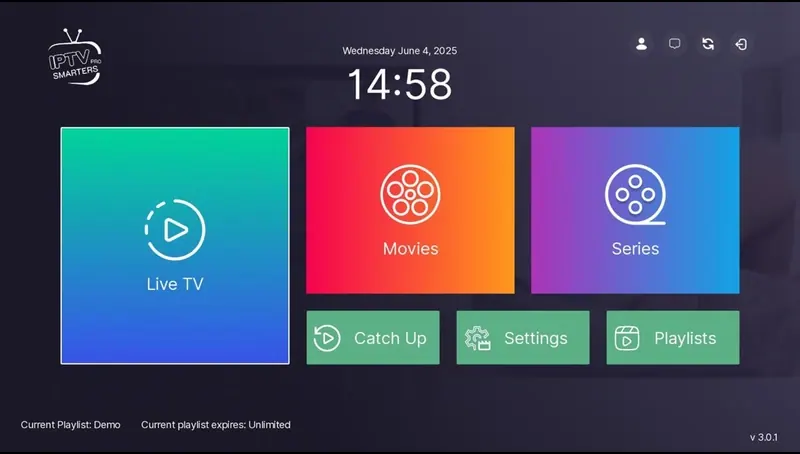
- In TiviMate, choose the hardware decoder under Playback and enable automatic frame rate.
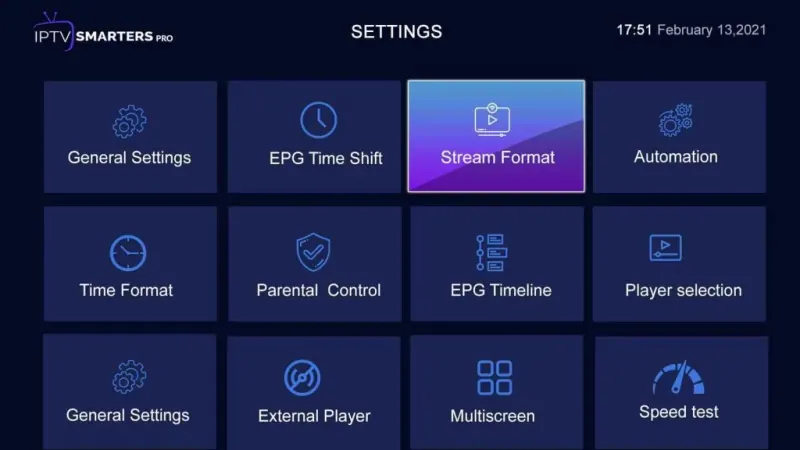
- In IPTV Smarters Pro, switch the player if a stream does not run smoothly.
- Let the programme guide refresh automatically at startup.
The complete setup is in our guide to IPTV on Fire Stick, and everything about the app is on TiviMate.
If it still stutters after all these settings
Then the cause is usually the network. Measure the speed directly at the stick, restart the router and check whether someone in the household is downloading large files. Detailed help is in our guide to fixing IPTV buffering.
The settings in the right order
If you change all your Fire TV Stick 4K Max settings at once, you will not know what helped. We recommend this order: first connection and network, then picture, then sound, and finally storage and app. After each step, watch for a few minutes. That way you know exactly which change made the difference.
Do not forget the TV’s picture mode
A large part of picture quality comes from the TV, not the stick. Many TVs are set to “Dynamic” or “Vivid” out of the box – that looks good in the shop but is overdone at home. Choose “Movie”, “Cinema” or “Filmmaker Mode” for a natural picture, and “Sport” for football if you like a little more brightness.
When the stick has become slow
After a few months, many sticks feel slower than on day one. There are usually three reasons:
- Too many apps: every installed app takes storage and sometimes background processes.
- Full caches: IPTV apps in particular collect programme data and images.
- Heat: heat builds up behind the TV and the stick throttles itself.
A short HDMI extension cable gets the stick out of the heat. Many boxes already include one.
Restarting properly
When you switch it off, the Fire TV Stick only goes into standby. A real restart is done via Settings → My Fire TV → Restart, or by briefly unplugging it. Once a week does no harm and often fixes small glitches.
What you should not change
The developer options contain settings meant only for developers. Do not change anything you do not understand. For IPTV, the only thing needed there is permission for “Apps from Unknown Sources”, which you set once during installation. Amazon explains the official settings on its help pages.
Verdict
With these ten Fire TV Stick 4K Max settings, you get noticeably more out of the device in about fifteen minutes. The biggest gains come from the right HDMI port, matching the frame rate and a stable network connection. If anything is unclear, message us on WhatsApp – we will go through the settings with you.
More articles

Football Night with Friends: How to Prepare Your TV and Living Room
Friends invited, snacks ready – and then the picture freezes? With this preparation, your football night with friends runs smoothly on the technical side.
Using IPTV When Travelling: Holiday Homes, Hotels and Campervans
IPTV when travelling: how to take your TV with you to a holiday flat, a hotel or a campervan – with tips on devices, internet, hotel Wi-Fi and mobile data.
Renew Your IPTV Subscription: The Checklist So Nothing Stops
Is your IPTV plan about to end? With this checklist you renew your IPTV subscription in time, keep your settings and avoid a black screen.