
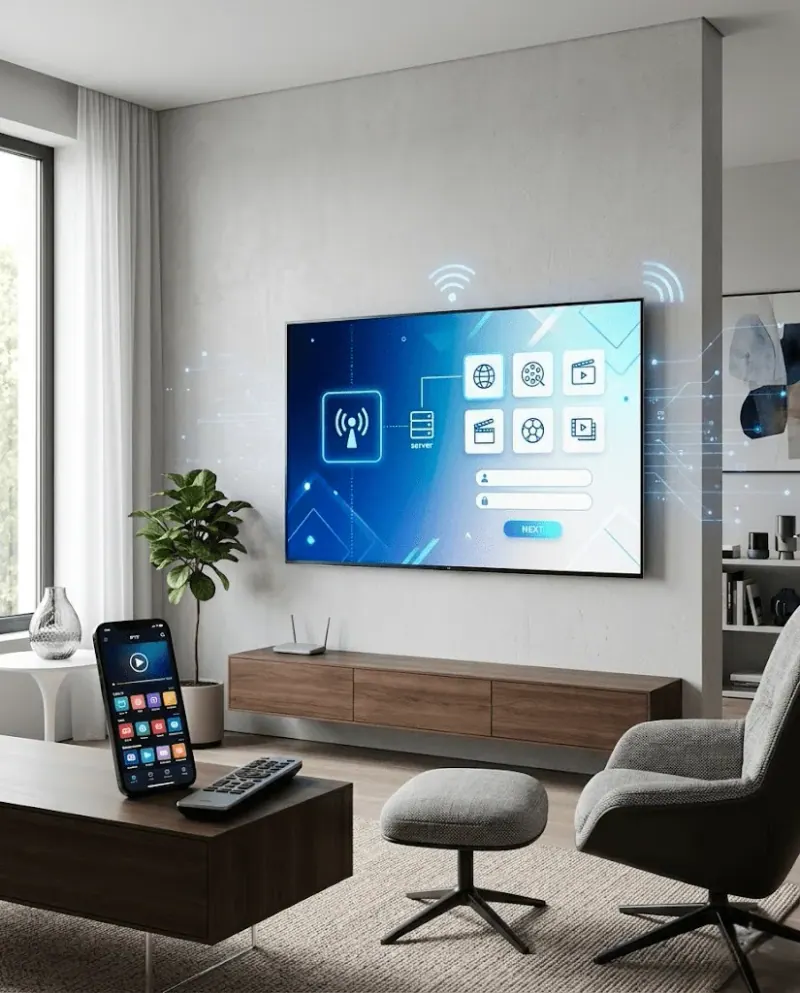
IPTV on LG TV: Setting Up IPTV on webOS
IPTV on LG TV in a few minutes: how to install an IPTV app on your webOS television, enter your login and quickly sort out the usual problems.
IPTV on LG TV
Set up IPTV on LG TV with webOS
LG TVs with webOS are among the most convenient devices for IPTV: players from the LG Content Store, the Magic Remote and a fast menu. From webOS 4.0 (around 2018), IPTV on LG TV usually runs smoothly.
- LG smart TV with webOS, ideally 2018 or newer
- LAN cable or 5 GHz Wi-Fi
- M3U link or Xtream Codes from us
Step by step
How to install IPTV on LG TV
On newer webOS versions the store is simply called “Apps”; on older ones it is the “LG Content Store”.
Set up the network
Connect the TV with a LAN cable or Wi-Fi. For 4K we recommend a cable or the 5 GHz band of your router.Open the store
Press the Home button and open “Apps” or the “LG Content Store”. The search function is at the top.Install an IPTV app
Search for an IPTV player such as “IBO Player” or “Smart IPTV”, install it and launch it.Add your playlist
Note the MAC address or device key the app shows and upload your playlist on the app developer’s website – or enter your Xtream Codes details directly in the app if it offers that.Restart the app and load the EPG
Close the app completely, open it again and load the programme guide. IPTV on your LG TV is ready to go.
Troubleshooting
IPTV on LG TV: quick fixes
App disappeared
Sometimes after firmware updates – reinstall it. MAC-based apps keep your login.
Error while loading
Enter the server URL without spaces and double-check username and password.
Stutters in the evening
Cable beats Wi-Fi – tips on fixing buffering.
No sound or wrong format
Switch decoder in the app or set audio output to “PCM”.
Keep reading
More guides
Questions & answers
Questions about IPTV on LG TV
Do I need an extra box for IPTV on LG TV?
Which webOS version do I need?
Why do I need to enter a MAC address?
Does IPTV on LG run in 4K?
Does the app on an LG TV cost anything?
Stuck somewhere?
Help for your LG TV
Tell us your model and webOS version – we will stay with you until the first channel plays.