
IPTV on Fire Stick: The Complete Installation and Setup Guide
IPTV on Fire Stick is the most popular setup for any TV with an HDMI port. Here is how to install an IPTV app – even one that is not in the Amazon Appstore – safely and step by step.
IPTV on Fire Stick
The easiest way to IPTV on any TV
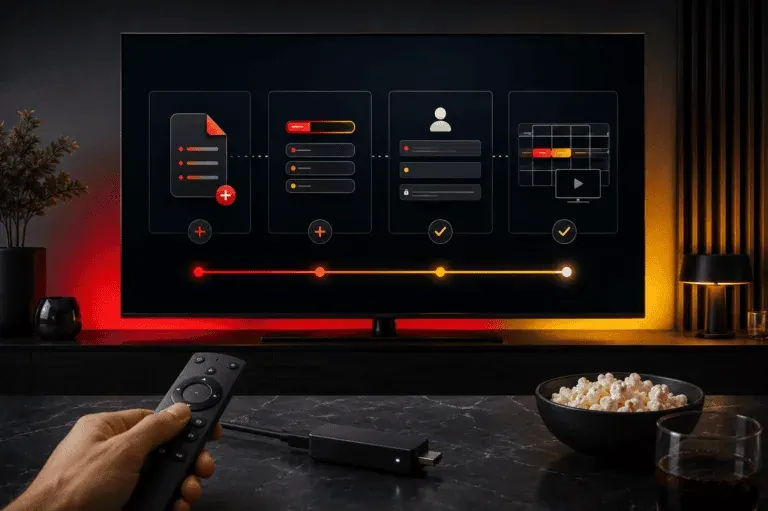
IPTV on Fire Stick turns any TV with an HDMI port into an IPTV screen – older ones included. The Fire TV Stick 4K Max is fast, affordable and runs the most popular players.
- Fire TV Stick (ideally 4K or 4K Max)
- The Downloader app for apps outside the store
- Optional: Ethernet adapter for a stable picture
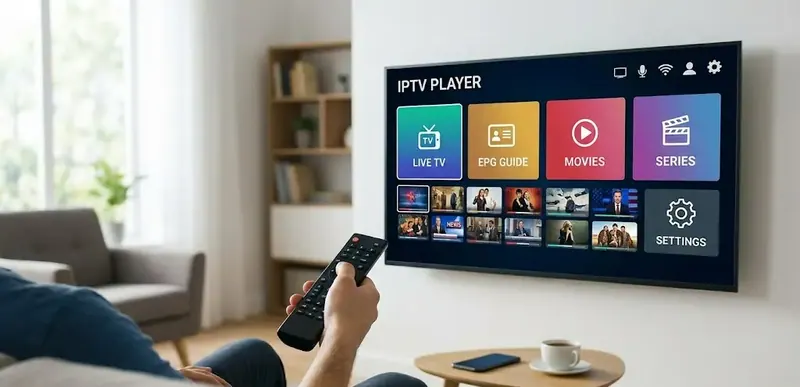
Step by step
How to install IPTV on Fire Stick in 7 steps
Menu names follow the English Fire OS menu; German equivalents are in brackets where helpful.
Install Downloader
On the home screen, use the search icon to find “Downloader” and install it from the Amazon Appstore.Unlock developer options
Go to Settings → My Fire TV → About (“Mein Fire TV → Info”). Click the name of your device seven times in quick succession until a message says you are now a developer.Allow Downloader to install apps
Go back to My Fire TV → Developer Options → Install Unknown Apps and switch “Downloader” on.Download the app from its official website
Open Downloader and enter the download address the app developer publishes on its official website, for example for IPTV Smarters Pro or TiviMate. Alternatively, check whether the app is available in the Amazon Appstore.Install the app and delete the file
Confirm “Install”. Afterwards you can delete the downloaded installer in Downloader to free up space.Enter your login
Open the IPTV app and choose “Xtream Codes” as the login type. Enter the server URL, username and password from our message.Load the EPG and set favourites
Load the programme guide in the app settings and add your favourites. IPTV on your Fire Stick is ready.
Models
Which Fire TV Stick for IPTV?
| Model | Picture | Verdict |
|---|---|---|
| Fire TV Stick Lite | Full HD | For smaller TVs |
| Fire TV Stick (current) | Full HD | Solid for HD |
| Fire TV Stick 4K | 4K / HDR | Good for 4K |
| Fire TV Stick 4K Max | 4K / HDR | Our pick |
Troubleshooting
IPTV on Fire Stick: common problems
“Unknown sources” missing
Go to Settings → My Fire TV → About and click the device name seven times to unlock developer options.
Stick getting slow
Clear the app cache and remove apps you do not use.
Buffering
Ethernet adapter or 5 GHz Wi-Fi – more on fixing buffering.
Which app?
TiviMate for the best guide, IPTV Smarters Pro for an easy start.
Keep reading
More guides
Questions & answers
Questions about IPTV on Fire Stick
Which Fire TV Stick is best for IPTV?
Is installing via Downloader safe?
Do I have to pay for TiviMate?
Can I connect the Fire TV Stick by cable?
Does IPTV on Fire Stick work when travelling?
Stuck somewhere?
Your Fire Stick set up in minutes
Tell us which model you have – we will walk you through it step by step.