
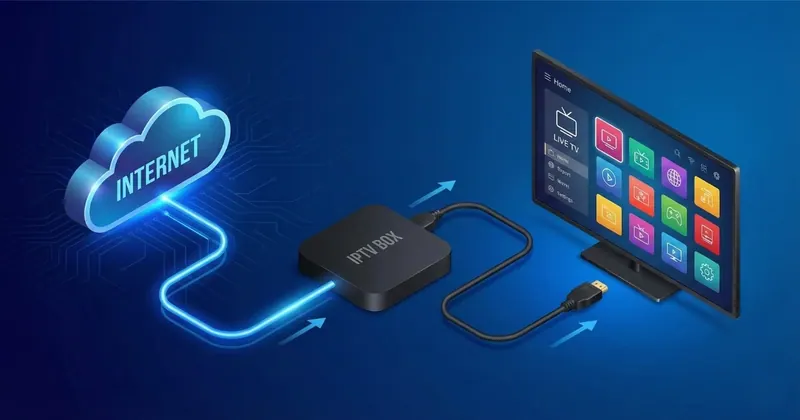
Install IPTV: The Setup Guide for Every Device
To install IPTV usually takes less than ten minutes. Here is what you need, which app suits which device and how setup works in general – with links to a detailed guide for each device.
Install IPTV
Install IPTV: ready in 15 minutes
Whatever your device, the way you install IPTV is always the same: a player app, your login and a stable internet connection – nothing more.
- A device with an IPTV app
- Login: M3U link or Xtream Codes
- Internet from about 10 Mbit/s for HD
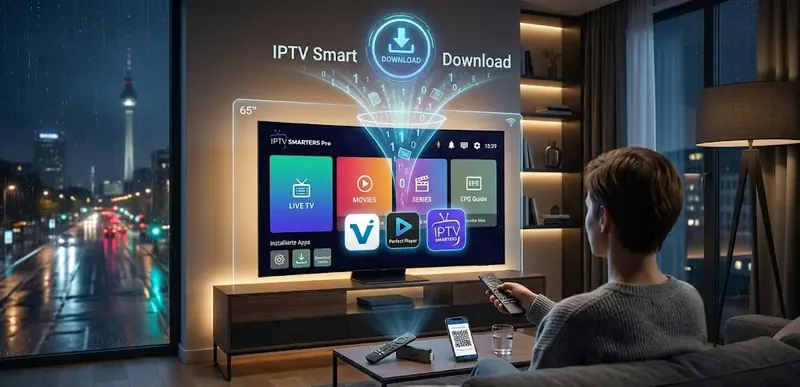
Step by step
Install IPTV – the five basic steps
Whatever the device, setup always follows the same pattern.
Prepare the device
Update the software, connect to the internet – ideally by LAN cable or 5 GHz Wi-Fi – and make sure there is enough free storage.Install an IPTV app
Get a suitable player from your device’s app store. On a Fire TV Stick you may need to go via the Downloader app.Enter your login
Choose “Xtream Codes” in the app and enter the server URL, username and password. For apps that use a MAC address, upload the playlist on the app developer’s website.Load the programme guide
Enable or refresh the EPG in the app settings. With M3U playlists you may need to add the EPG address.Test and fine-tune
Watch for a few minutes, add favourites and check the player settings. Done – you have successfully installed IPTV.
Your device
A guide for your device
Pick your device – each guide shows the exact menu items.
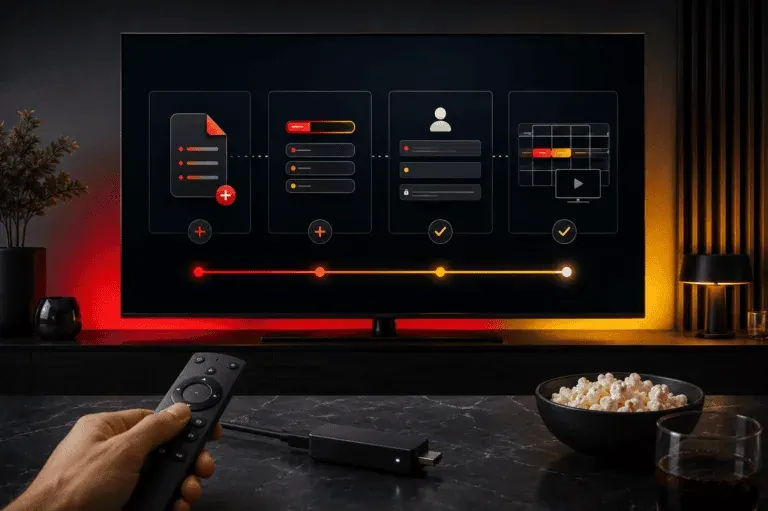
Your login
M3U or Xtream Codes?
| Format | What it looks like | Best for |
|---|---|---|
| M3U link | One long web address | Apps with playlist upload (IBO Player, Smart IPTV) |
| Xtream Codes | Server URL, username, password | IPTV Smarters Pro, TiviMate – usually more stable |
After installing
First steps once you install IPTV
Load the guide
Refresh the EPG in the app settings – see IPTV EPG.
Add favourites
Mark your main channels so you can find them fast.
Test the connection
Watch for a few minutes in the evening. If it stutters, see fixing buffering.
Ask us
Stuck at any point? Just message us on WhatsApp.
Questions & answers
Questions about installing IPTV
How long does it take to install IPTV?
How do I install IPTV on a TV without smart features?
Which app is easiest for beginners?
Can I install IPTV on several devices?
Do I need technical knowledge?
Still have a question?
We will install IPTV with you
Tell us your device – we will guide you through every step on WhatsApp.