

IPTV Parental Controls: How to Protect Your Children
Set a PIN in your IPTV app to lock categories and content for children. How to set up IPTV parental controls in the most common apps, step by step.
Children are quick with the remote – often quicker than their parents. If you use IPTV in a family home, you should set up IPTV parental controls. It only takes a few minutes and ensures that only suitable content can be opened without a PIN. Here we show how it works in the most common apps and what else you can do on the device itself.

What IPTV parental controls can do
Parental controls in IPTV apps usually work with a PIN. You choose categories or individual channels to lock, and anyone who wants to open them has to enter the PIN. It is not high-security technology, but it is very effective in everyday family life. Typical functions:
- Locking whole categories, such as films or certain groups
- Hiding content you do not want to appear at all
- PIN protection for the app’s settings
Setting up IPTV parental controls in the app
IPTV Smarters Pro
Open the settings via the gear icon and choose “Parental Control”. Set a PIN, then mark the categories you want to lock. More about the app in our guide to IPTV Smarters Pro.
TiviMate
In TiviMate you find parental controls in the settings. There you set a PIN and can lock groups. You can also hide groups completely so they do not appear in the list at all. Details on TiviMate.
Other apps
Many other players, such as IBO Player, also offer a PIN function, often called “Parental Control”. The name varies, but the principle is the same.
Parental controls in five steps
- Open the app and go to the settings.
- Choose “Parental Control”.
- Set a PIN your children will not guess – so not 0000 or 1234.
- Select the categories or channels to lock.
- Test it: try once to open a locked category.
Secure the device as well
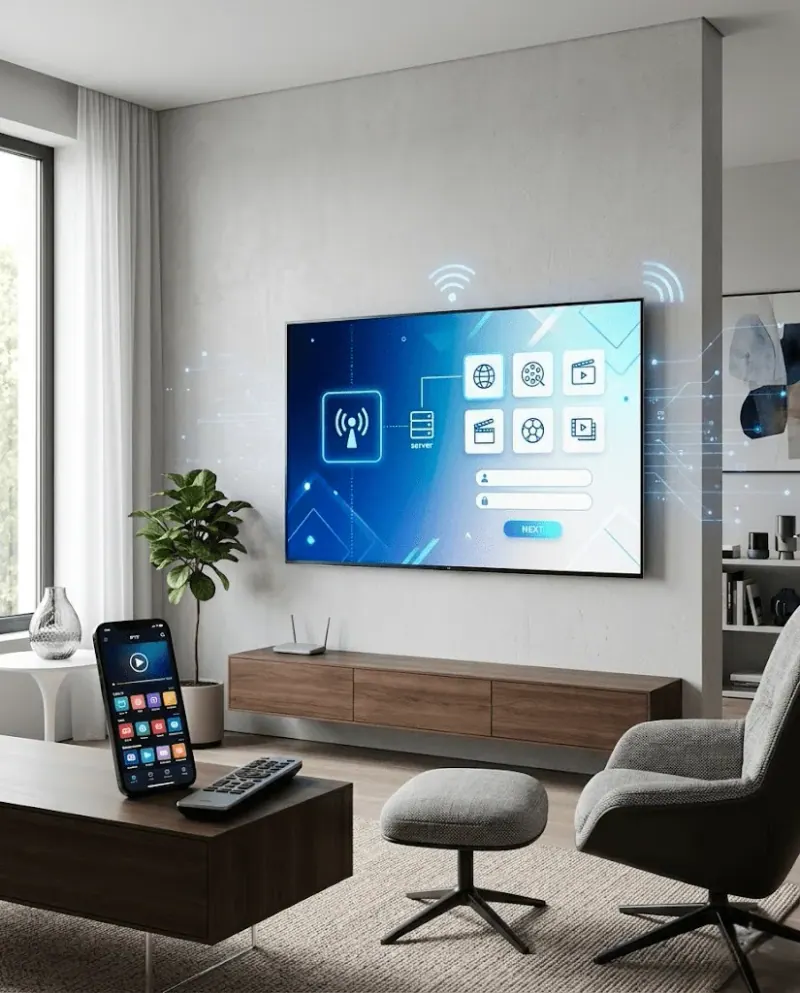
The app is only one part. The device itself should be protected too, so children cannot simply install another app.
- Fire TV Stick: under Settings → Preferences → Parental Controls you can set a PIN for purchases and app launches.
- Android TV: create restricted or children’s profiles, depending on the device.
- Smart TV: many TVs have their own app lock in the system settings.
More than technology: talking helps
No parental control replaces clear agreements. With older children especially, it helps to decide together what is watched and when. The German initiative SCHAU HIN! offers good ideas and age-appropriate recommendations for parents.
Which content to lock
How strict to set IPTV parental controls depends on your children’s age. For primary-school children, it makes sense to lock everything except the children’s categories. For teenagers, locking individual categories is often enough. Review the settings every now and then – children grow, and so do their interests.

Choosing a good PIN
Children are amazingly good at guessing PINs. Birth years, 1234, 0000 or the house number are tried quickly. Choose a number with no link to the family, and change it if you suspect it has been discovered. Do not write the PIN on a note next to the TV.
Parental controls on every device
Living-room TV
Combine the PIN in the IPTV app with the device’s own parental controls so children cannot simply open another app.
Tablet in the children’s room
Tablets let you create separate children’s profiles. Only install the apps that should really be used there.
Smartphone
The family features of the operating systems allow time limits and app locks. For younger children, that is often more useful than a single app PIN.
Limiting screen time sensibly
Parental controls protect against unsuitable content, but not against too much TV. Many families therefore also use fixed times. A sleep timer in the app or on the TV helps to stick to the evening routine.
A typical mistake
A common mistake: a family date is used as the PIN, such as grandma’s year of birth. Children try exactly those numbers first. A new, random PIN solves the problem straight away. Small cause, big effect.

Our verdict on IPTV parental controls
IPTV parental controls are quick to set up and bring a lot of peace to family life. Combine the PIN in the app with a lock on the device and talk to your children about the rules. If you use IPTV on several devices, read our article on installing IPTV for the setup on each device type – or message us on WhatsApp if you get stuck.
More articles

Football Night with Friends: How to Prepare Your TV and Living Room
Friends invited, snacks ready – and then the picture freezes? With this preparation, your football night with friends runs smoothly on the technical side.
Using IPTV When Travelling: Holiday Homes, Hotels and Campervans
IPTV when travelling: how to take your TV with you to a holiday flat, a hotel or a campervan – with tips on devices, internet, hotel Wi-Fi and mobile data.
Renew Your IPTV Subscription: The Checklist So Nothing Stops
Is your IPTV plan about to end? With this checklist you renew your IPTV subscription in time, keep your settings and avoid a black screen.